Online
Musicians join from anywhere — different networks, mobile data, even from home for a remote rehearsal.


The stage app for live bands
Tap a song and it opens on every musician’s screen at once — chords, lyrics, key and cues. Online for rehearsal, on the mixer’s Wi‑Fi for the gig.
Free download · Musicians join free · No ads
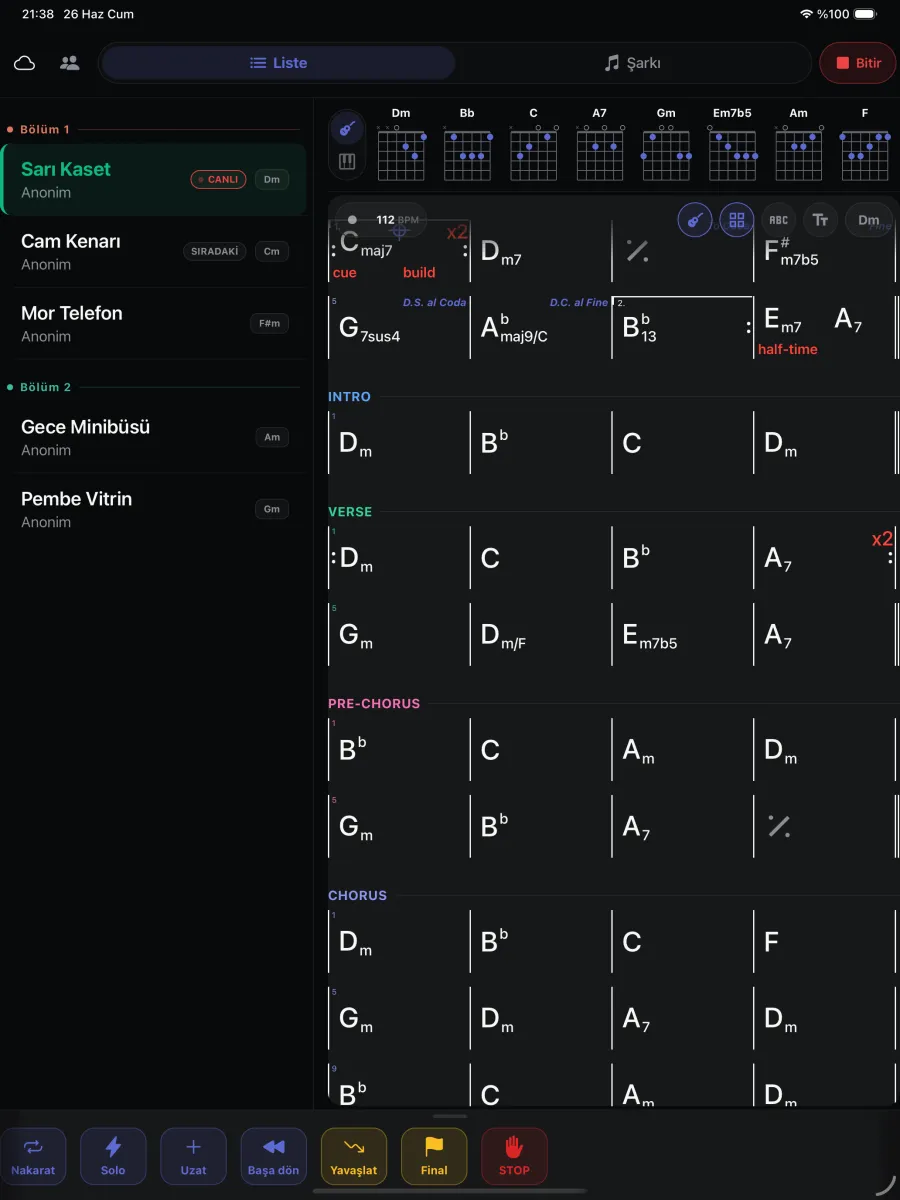
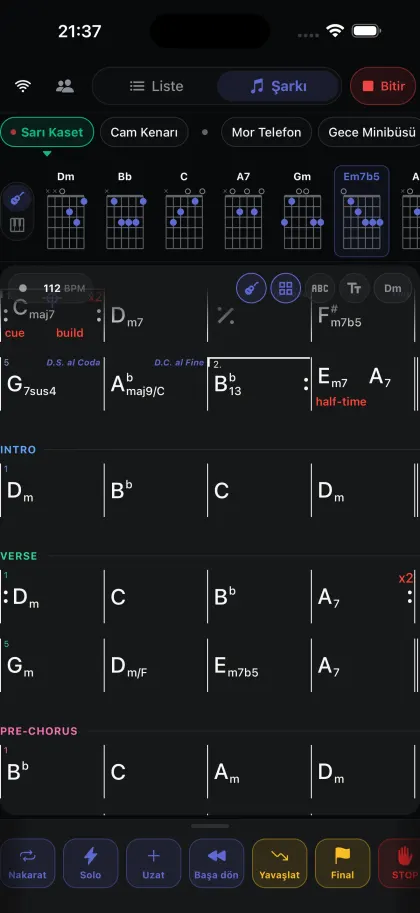
One tap, every screen
The maestro double‑taps the next song. It opens on every musician’s screen at the same moment — in their own view, in the band’s key.
How it works
Set it up once before the gig. On stage, all you do is pick the song.
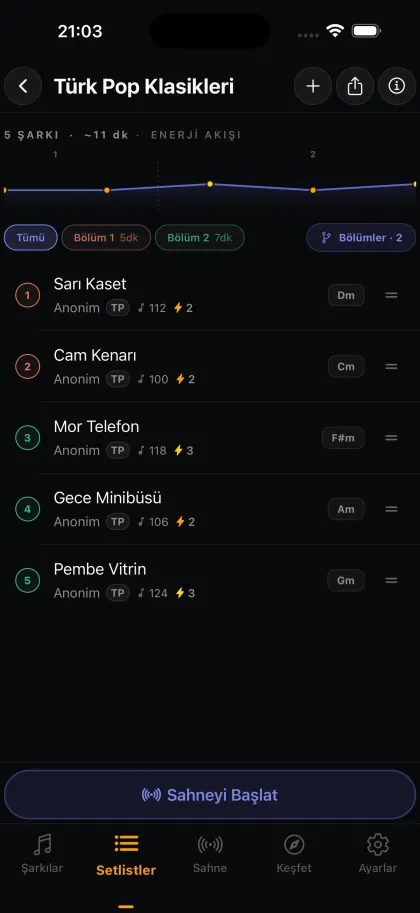
Add or import your songs, then set the order, key and tempo for the night.
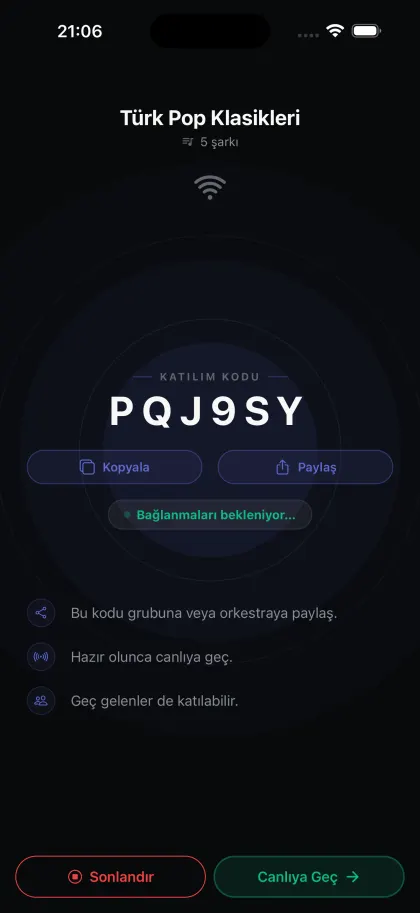
Choose online or Wi‑Fi. Maestrom creates a six‑character join code.
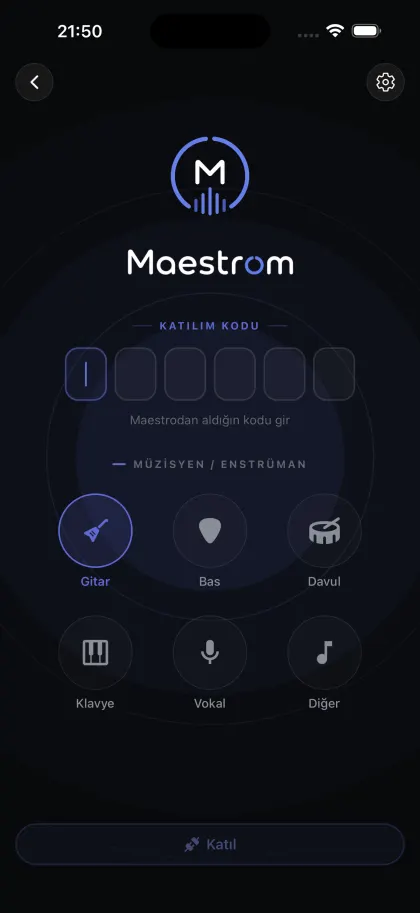
Musicians enter the code and pick their instrument. Latecomers can join anytime.
Double‑tap a song and it opens on every screen at once. Cues and key changes follow.
Two ways to connect
Pick how the stage connects when you start it. Your band joins the same way either way.
Musicians join from anywhere — different networks, mobile data, even from home for a remote rehearsal.
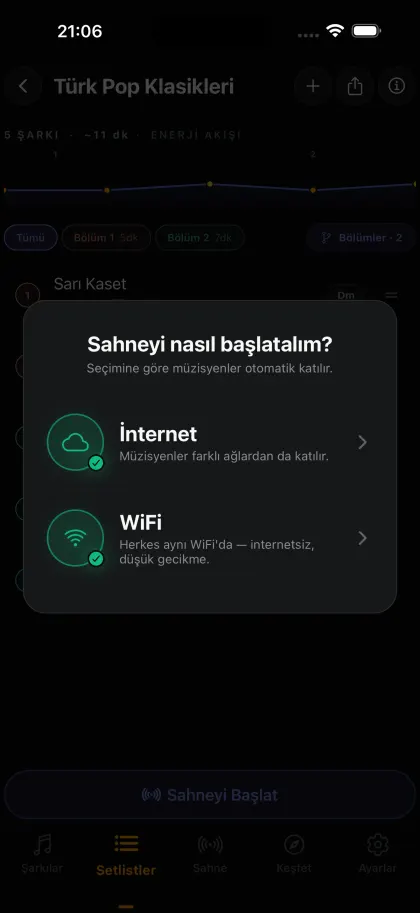
Everyone on the same Wi‑Fi, like the router on the mixing desk. No internet needed, and the delay stays tiny.
On stage
Every call you used to make with your voice now takes a single tap.
Seven cue buttons under your fingers. One tap and the cue flashes on every musician’s screen.
Change the key or tempo once and every screen follows. Personal key turns only your own screen.
A single tap previews. A double tap goes live. No accidental song changes mid‑show.
Got a request? Add it from your library and it reaches the band instantly.
Maestrom tries to reconnect on its own. Once it’s back, the musician returns to the song that’s live.
For every musician
Same song, same key, same moment — but each musician picks the view that fits their instrument.
Chords sit above the lyrics, for those who sing and play.
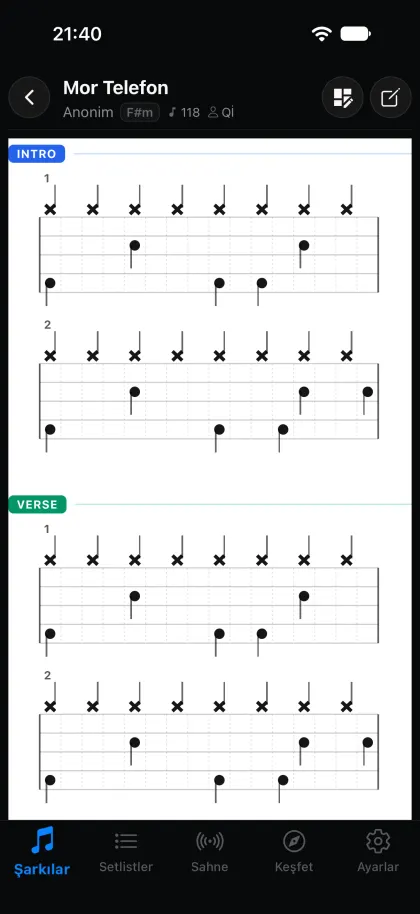
A clean bar‑by‑bar chart with sections and repeats.
Big, bold lyrics a vocalist can read from a step back.
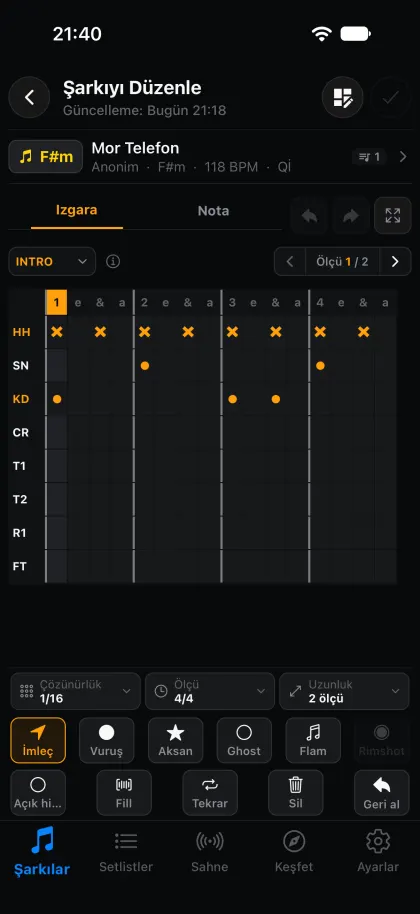
Drummers write their own grooves and read them on stage.
Letters, Nashville numbers or Roman numerals · Guitar and piano chord diagrams
Writing songs
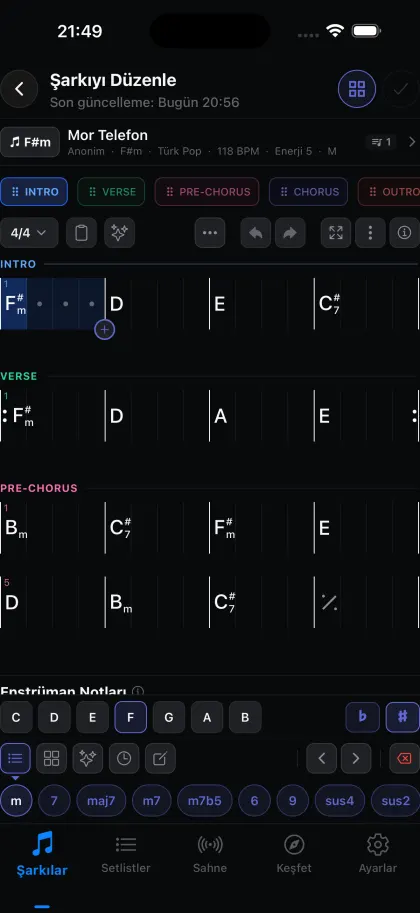
Write lyrics and chords line by line, the chart bar by bar, the groove step by step. One song, ready in all four views.
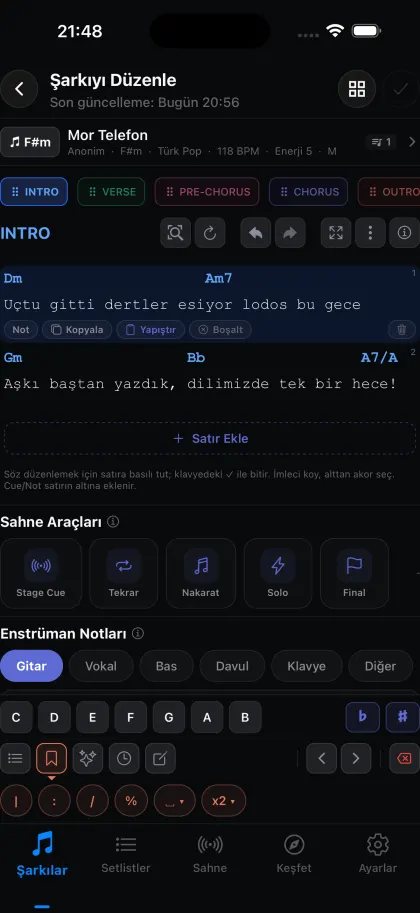
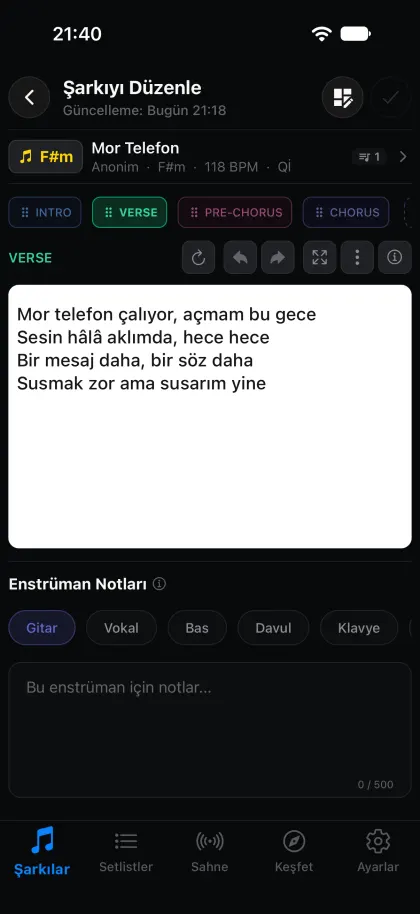
Paste text from anywhere; chords, bars and repeats are picked up and the lyrics are dropped.
Build the bar chart from the chords already in your lyrics.
Move the whole song to a new key; chords are spelled right for that key.
iReal Pro, MusicXML and Maestrom files. See every import option
Roles
Choose a role each time you open Maestrom. The same account can lead tonight and play along tomorrow.
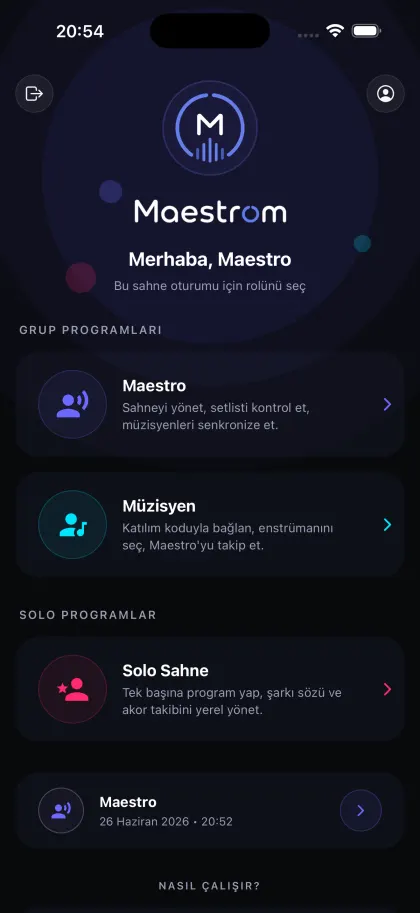
Solo Stage
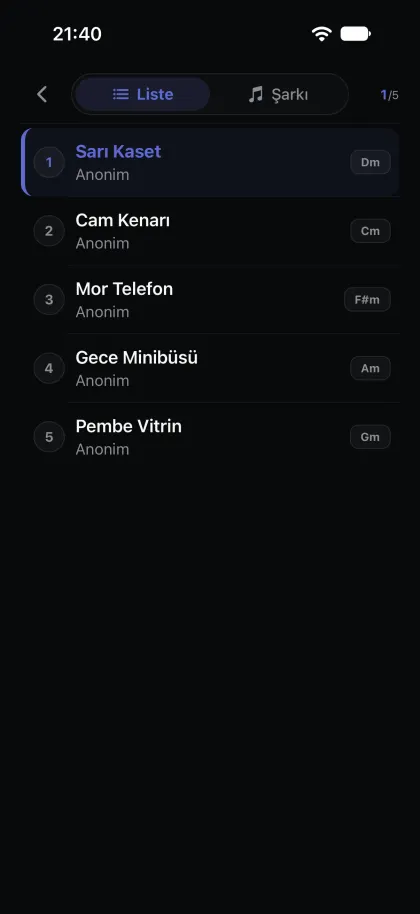
No live session, no connection. Open your setlist in Solo Stage and each song comes up in order, in its own key and tempo.
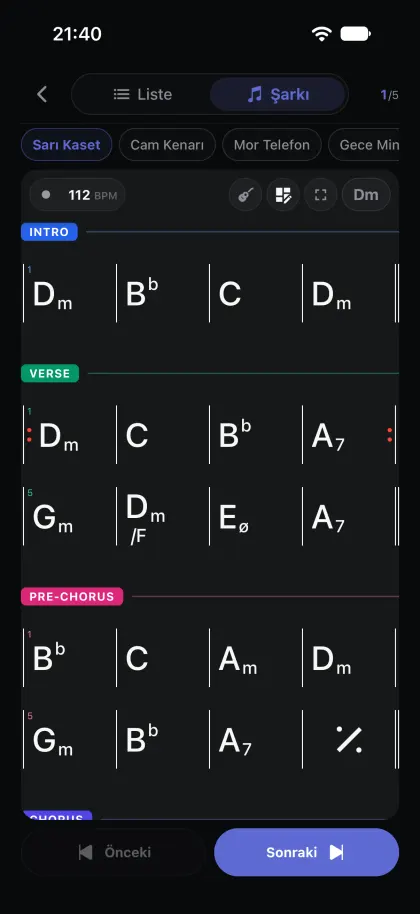
Switch between the list and the song or jump from the strip at the top; on a tablet, both side by side.
Each song opens in the key and tempo set in your setlist, with the metronome on screen.
Lyrics + Chords, Chords Only, Lyrics Only or Drums, with guitar and piano diagrams.
The screen stays on, and Maestrom remembers the song you stopped at.
Made for solo singers, piano and guitar-vocal sets, rehearsal and practice.
Repertoire
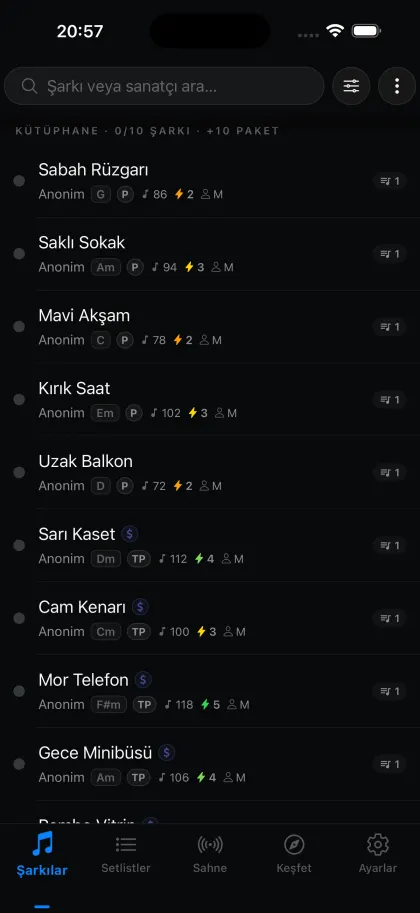
Six ways to fill your library. Everything is stored on your device and opens even without a connection.
One song or your whole backup. Playlists can come in as setlists.
Preview .musicxml and .mxl files before you add them.
Open a song (.msts) or a full setlist (.mstl) from your band with one tap.
Paste chords copied from anywhere and the chart builds itself.
Download ready-made packs from Explore and add them to setlists.
Back up your library and restore it on a new device.
Pricing
Every tool is in the free plan. Pro only removes the capacity limits.
Everything you need for your first gigs.
For bands that play every week.
Prices are shown in the App Store and Google Play.
FAQ
No. Musicians join free with a Maestrom account. Only the person who leads the stage may need Pro, and only once they outgrow the free limits.
Yes. Choose Wi‑Fi when you start the stage and everyone connects over the same local network — the router on the mixing desk is enough. Your songs and setlists are stored on your device.
iPhone, iPad, Android phones and Android tablets. One stage can mix all of them.
Type them in the editor, paste a chord chart, or import from iReal Pro (playlists can become setlists), MusicXML or a Maestrom file someone shared with you. You can also download song packs from Explore.
Yes. Everyone picks their own view — Lyrics + Chords, Chords Only, Lyrics Only or Drums — and can use a personal key without changing the band’s key.
Maestrom tries to reconnect on its own; once the connection is back, the musician returns to the song that’s live. Musicians who arrive late can join at any time.
Your songs and setlists live on your device. During a stage they’re shared with the musicians who joined — over the local Wi‑Fi, or through our servers when you play online. See the Privacy Policy for details.
Free on iPhone, iPad and Android.